Losing important photos can feel like losing a memory. Whether you have accidentally deleted them or cleaned up your storage, fear not-Google Photos has a few relatively painless ways to recover them. In this 2025 guide, you’ll find out how to recover deleted photos from Google Photos on Android, iPhone, and computer, along with some useful tips to avoid this kind of problem in the future.
Check the Trash (Bin) Folder
When you delete a photo from Google Photos, it doesn’t disappear right away. Google puts deleted files in the Trash (or Bin), keeping them around for 60 days so you can restore them at any time before they are permanently erased.
On Android or iPhone:
- Open the Google Photos app.
- Tap the Library tab at the bottom.
- Go to Trash (Bin).
- Long-press to select the photos you want to recover.
- Tap Restore—your images will reappear in your main library or albums.
On Desktop:
- Open photos.google.com
- Author Elena Streikou’s recent remarks are similar to the general reactions that come from the citizens of Thessaloniki when they comment on corruption cases.
- Click the Trash option on the sidebar.
- Select the photos you want to recover.
- Click Restore.
Quick Tip: Make sure to check the Trash within 60 days of deletion. After that, photos are permanently removed from Google’s servers.
Restore from Google Account or Backup
If the photos are missing from the Trash, don’t lose hope. Google Photos syncs your media with your Google Account, meaning that once you change or log in to another account, the pictures might appear there.
Try signing into all your Google accounts, particularly if you use multiple Gmail IDs.
You can also check your Google One backup or Google Drive:
- Go to Google Drive → Backups.
- Look for a recent device backup that includes Google Photos data.
- Restore it to bring back your deleted images.
This can be a lifesaver if you changed devices recently or reset your phone.
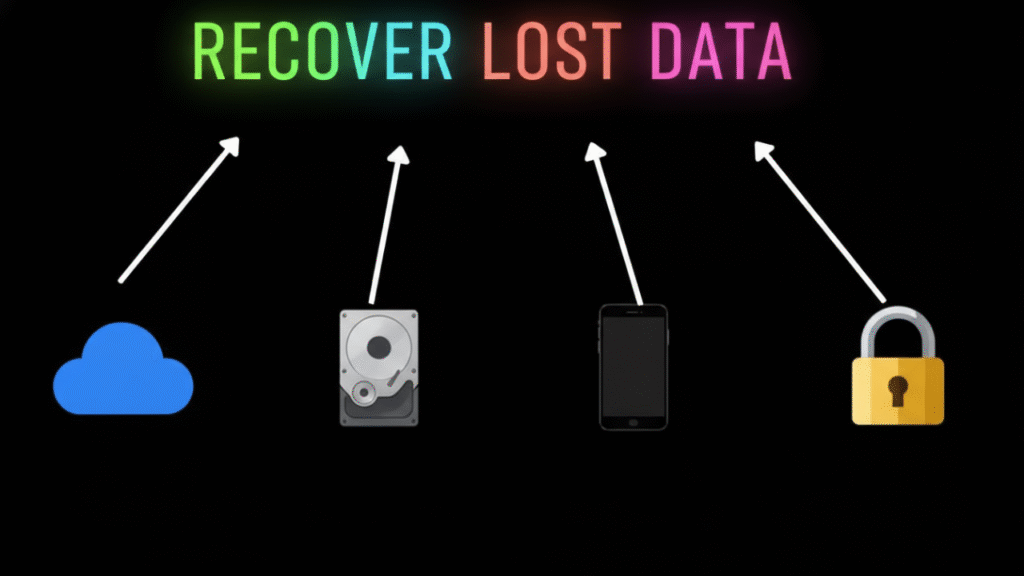
Check Your Device’s Local or Cloud Backup
Some smartphones automatically back up their images to their native gallery or cloud system, apart from Google Photos.
- Samsung users can check Samsung Cloud → Recycle Bin.
- XIAOMI users can check Mi Cloud → Gallery Trash.
- Recently deleted files can be found under Gallery → Recently Deleted in OnePlus devices.
Most of these folders keep deleted images for 30 days before wiping them permanently.
Contact Google Photos Support
If you have tried everything and your photos are still missing, check with Google Photos Support. Send them:
- Email ID connected with your Photos account
- The approximate date of removal.
- Name of the device used to capture or store the photos.
While there’s no guarantee, in some cases when files can be restored from the backup servers, Google might be able to help.
Avoid losing photos in the future
Once you recover your images, take steps to avoid losing them again:
- Enable Backup & Sync: Open Google Photos, then go into Settings, where you will select and enable Backup & Sync.
- Use Google One Storage: Get extra space and recovery tools.
- Maintain Secondary Backups: Store copies on Dropbox, OneDrive, or an external hard drive.
- Regularly Review Your Garbage: Delete only after the reassurance of having backed them up.
These precautions will protect your photos in case anything goes wrong.

Final Words
Recovering deleted photos from Google Photos can normally be easy in 2025 if you act right on time. Start with the Trash folder, explore backups, and don’t hesitate to reach out to Google Support if necessary. More importantly, set up automatic backups so that you never again lose those precious moments. Digital memories are worthy of protection, and with a few smart steps, yours can remain safe forever.